


If you are a corporate administrator or an IT staff, you may have confront a situation that you have to install and setup Windows XP on many computers which all computers have identical hardware configurations. What will you do? Go to each computer, sit and manually install Windows XP? If only a few computers, it's OK to do that. It would takes few hours to complete that. But what if there are more than 10 computers or 100 computers waiting you to install and setup. That would be painful to do that way.
Note: This topic isn't a new technology but I think it may be useful to many people so I decide to post it.
The series is divided into 4 parts:
The common way which is widely use to do this task is called Cloning, Imaging or Ghost (The name comes from Norton Ghost which is a popular Disk Imaging Software in the old days). Cloning, the name has already described what it does. It creates image file bit-by-bit from source disk and then restores the data on destination disk. So that the destination disk has the same data as the source disk. This can be done using Disk Imaging Softwares such as Norton Ghost, Acronis True Image, R-Drive Image, Paragon Drive Backup, etc. In this tutorial, I'll use the popular one Norton Ghost.
But wait, don't start cloning a disk now. There is one problem since Microsoft Windows 2000 has assigned a unique security ID (SID) to each computer when it was installed. If you cloned the Windows, they would have the same SID and may cause many problems when both computers are in the same domain. On stand-alone computer, this is not a problem. But you can't join the cloned computer to same domain as the original computer.
So to prevent duplicated SID, Microsoft provides a tool "Sysprep" to handle this problem. Sysprep is a tool to deploy Windows XP on multiple computers. Sysprep prepares the sample computer for cloning. After cloned, Sysprep modifies the local computer security ID (SID) on the destination computer the first time the computer is restarted so that the SID is unique to each computer. The requirements for using Sysprep as part of disk duplication process are at the following:
Reference: How to Prepare Images for Disk Duplication with Sysprep
There are also some notes that you should know about Sysprep tool:
For full information about Sysprep, see How to Use Sysprep: An Introduction and What Is Sysprep?
In this series, I'll show you how to duplicate Windows XP by disk to disk only. But in the production environment, you can apply to clone through network so that you don't have to touch any hardware device. But this way requires that the network should be fast enough (at least should be fast Ethernet – 100 Mbps). Otherwise, the network may be congested and resulting in slow down network application and cloning will takes too much time.
Now you have understand things to clone Windows XP. Here are summarize steps you have to perform:
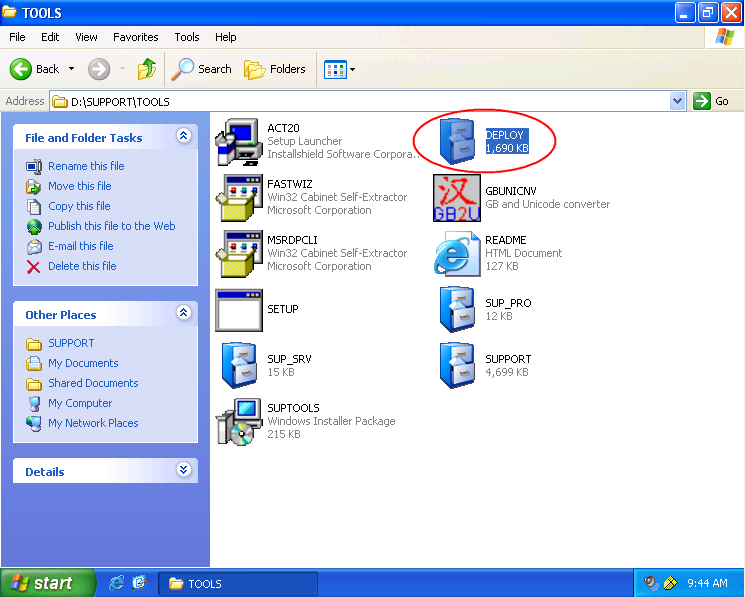
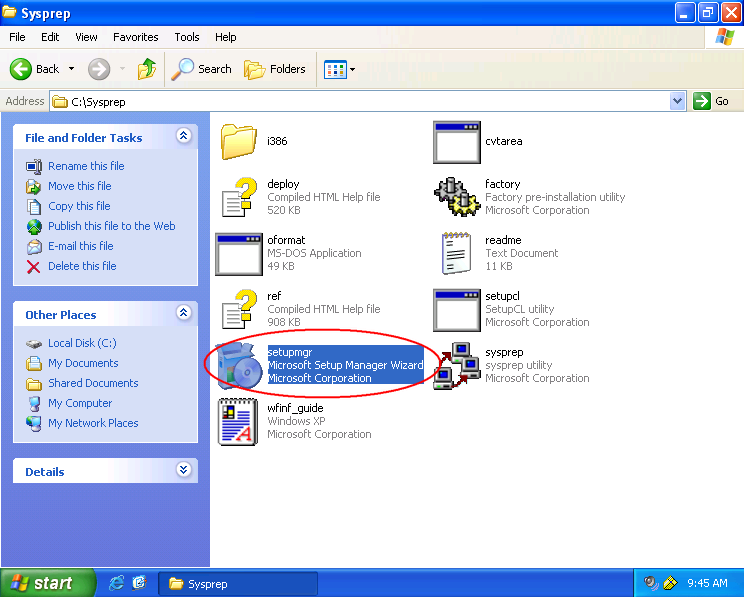
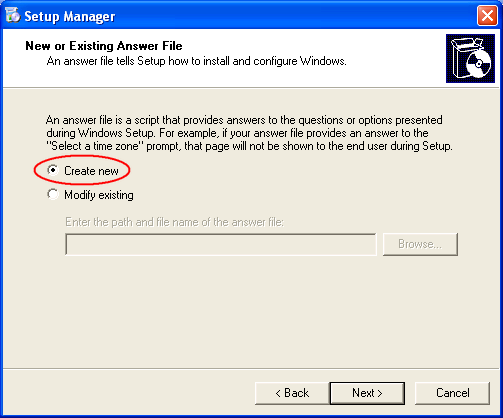
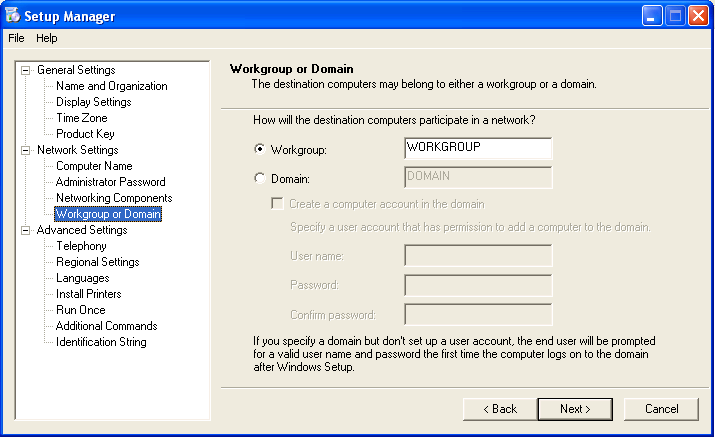
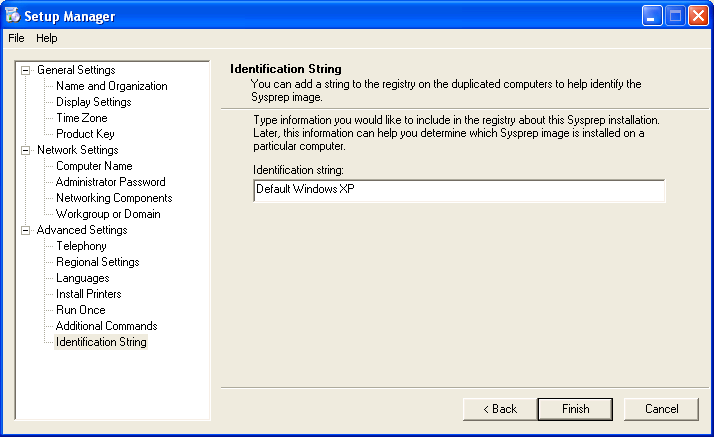
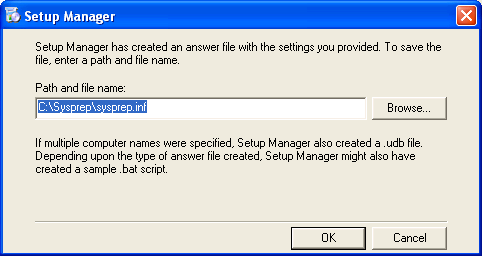
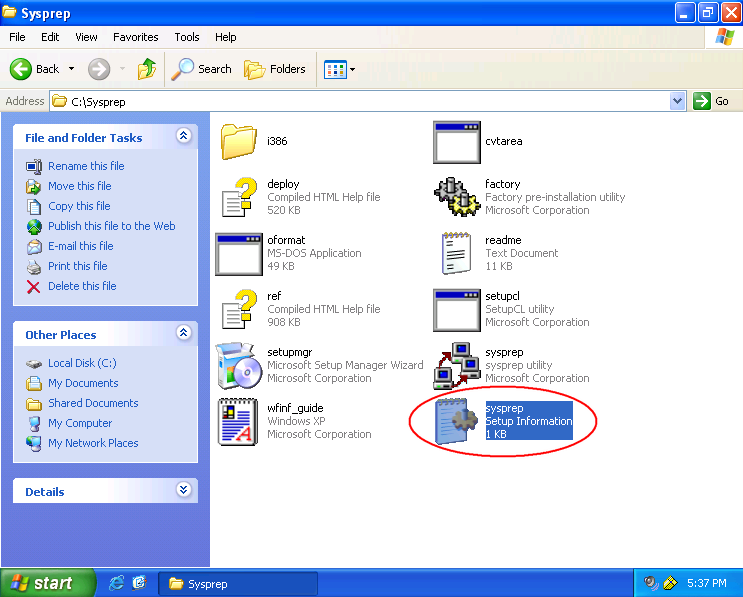
In this post, I'll show you how to create an Answer file for using when setup Windows after a computer is cloned. And run Sysprep tool to prepare a computer to be a sample computer (source disk) for cloning.
The Answer file should contains only general configuration not unique value on each computer. For instance, if you're going to deploy the image to all computers in the same time zone, it is good to configure time zone in the answer file so that you don't have to set time zone on each computer after cloned them. But if you're going to deploy the image in different time zone, you should not configure time zone in the answer file.
You can see the index of this series at Clone Microsoft Windows XP using Sysprep and Norton Ghost, Part I: Introduction

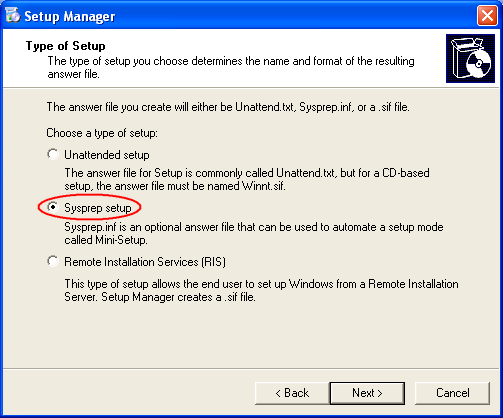
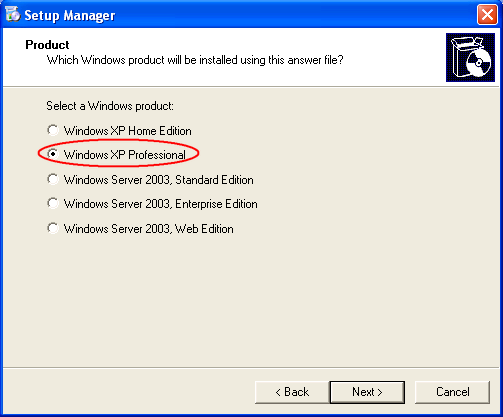
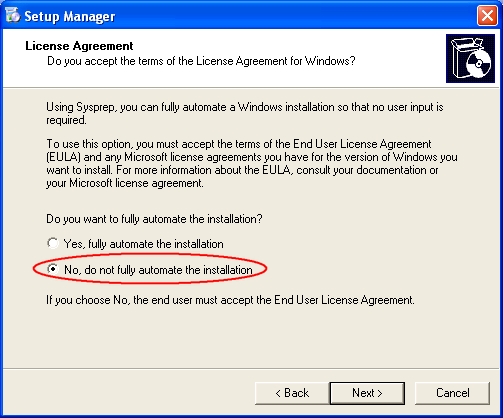


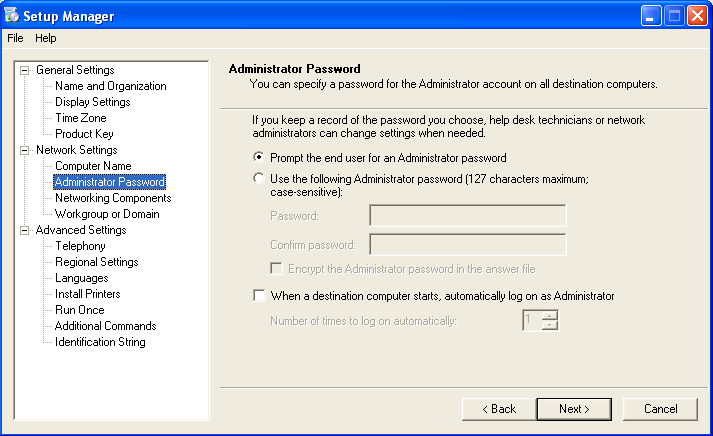

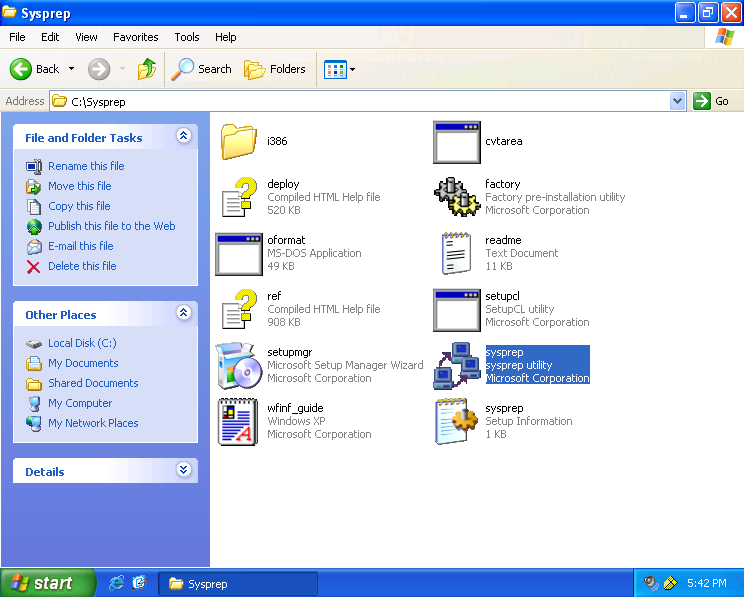
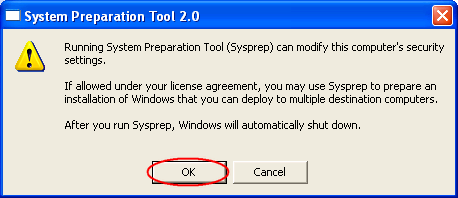
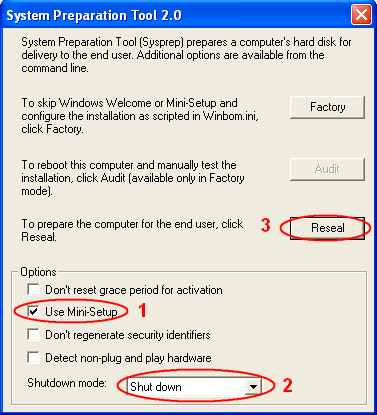
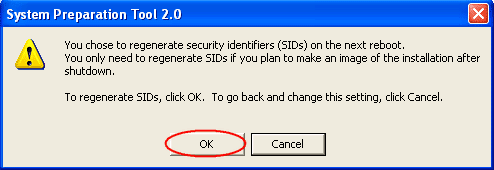
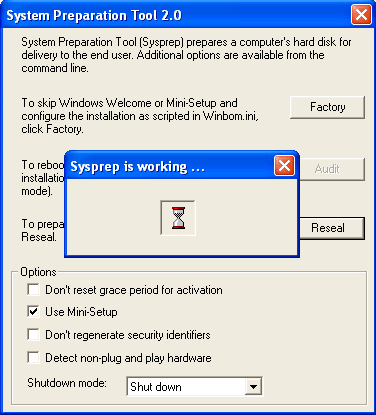
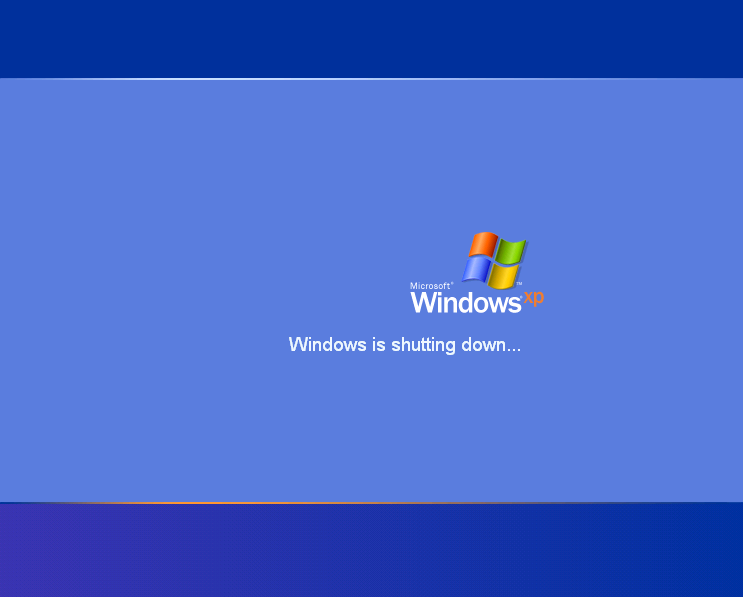
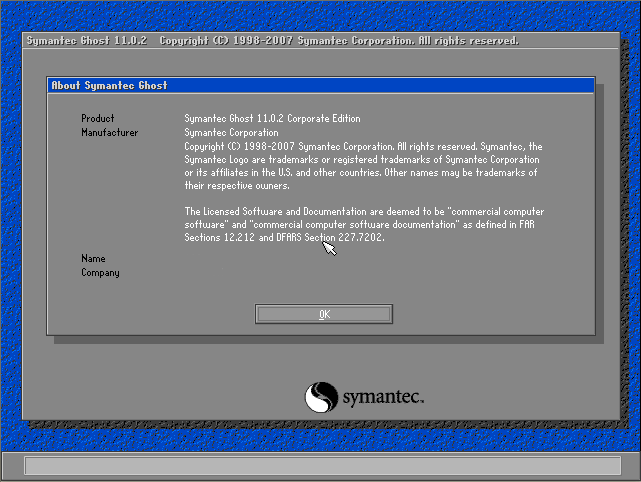
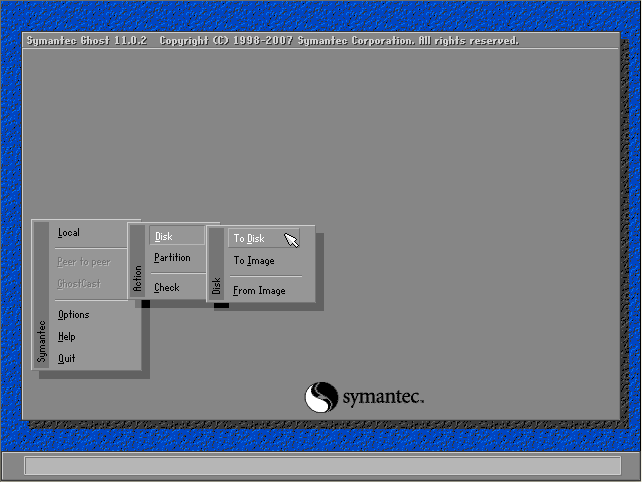
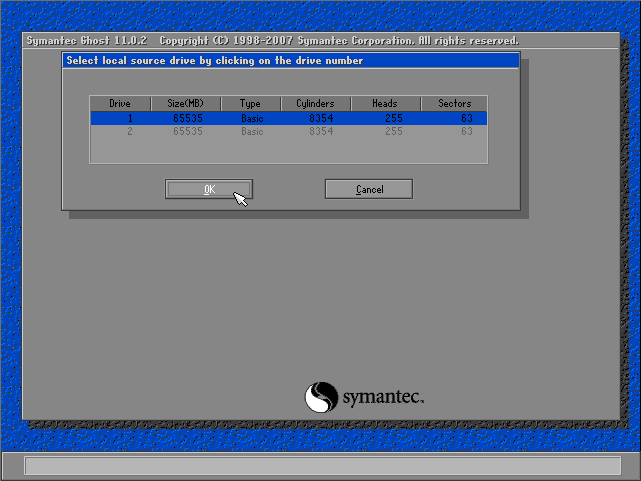
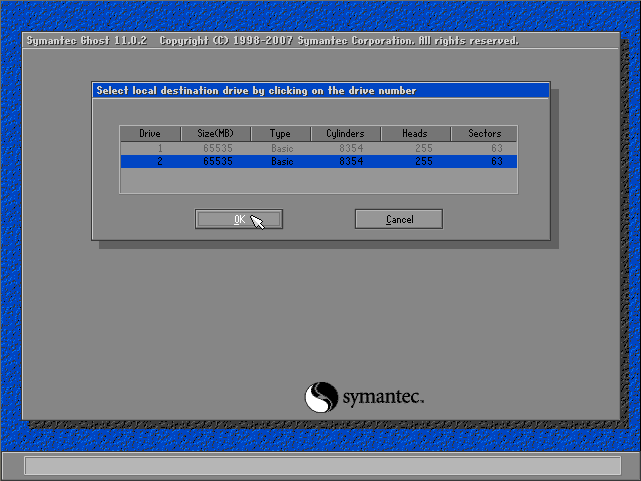
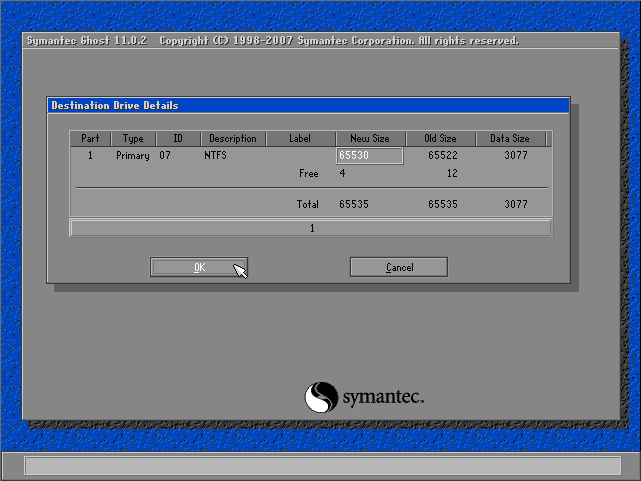
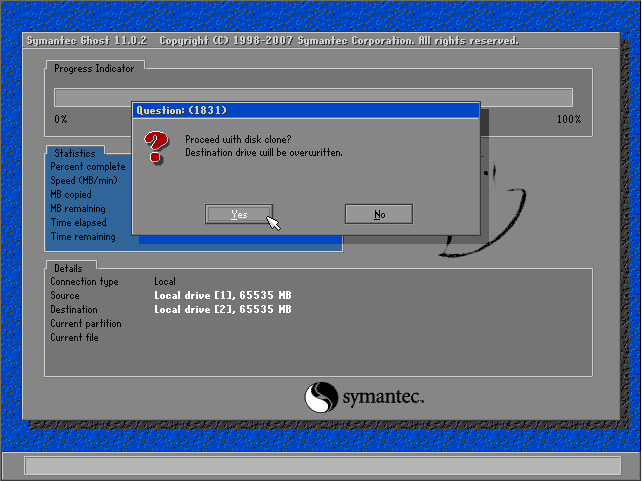
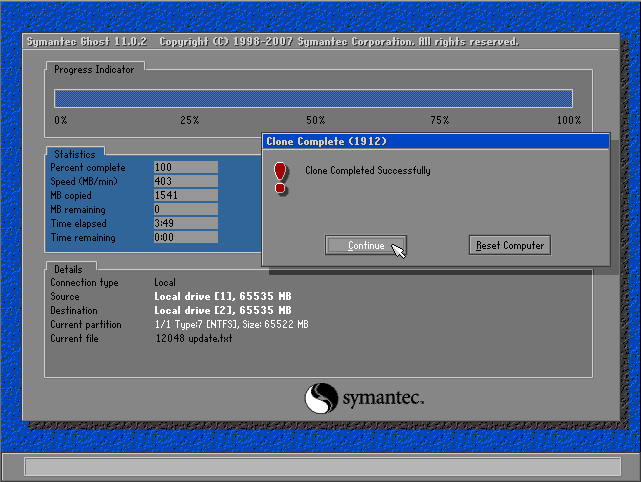
In this post, I'll show you how to clone a disk to disk using Norton Ghost. From last post, I have run Sysprep tool to prepare the disk for cloning. This is just an example so I've attached another disk to this computer and I'm going to clone disk to disk. Then, I'll get the cloned disk to attach to another PC and run Mini-setup which will be show in the next post.
If you're going to apply this tutorial in a corporate, you should clone the sample computer's disk to an image file and store it on a file server (or any place on the network). When you want a new computer, you simple restore image file from the file server through network without touching any hardware device.


 Posts
All Comments
Posts
All Comments


